Styling & Notes
Customize the appearance of your activity diagrams with colors, partitions, groups, and notes to make them more readable and informative.
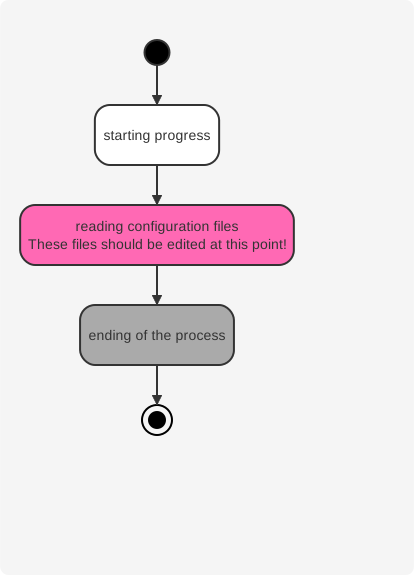
Colors
You can specify a color for activities using the #color prefix before the action.
Activity Diagram Example
Loading...
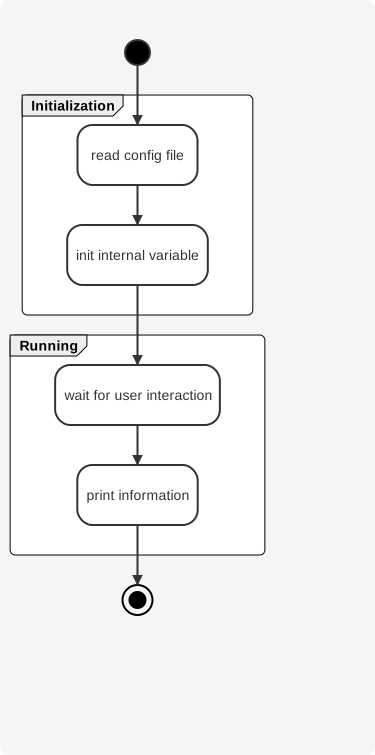
Partitions
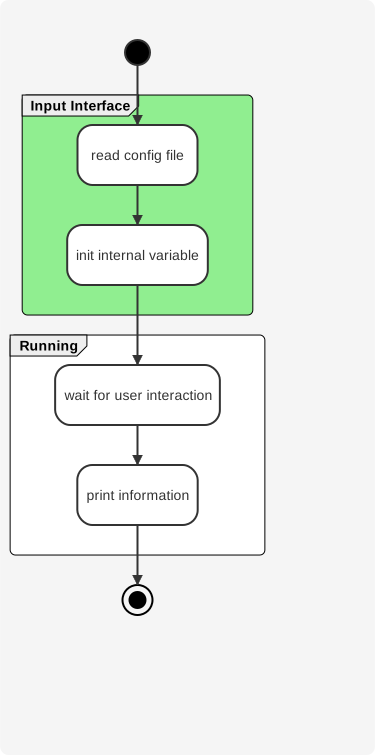
Group activities together by defining partitions. Partitions can have names and colors.
Activity Diagram Example
Loading...
Colored Partitions
Activity Diagram Example
Loading...
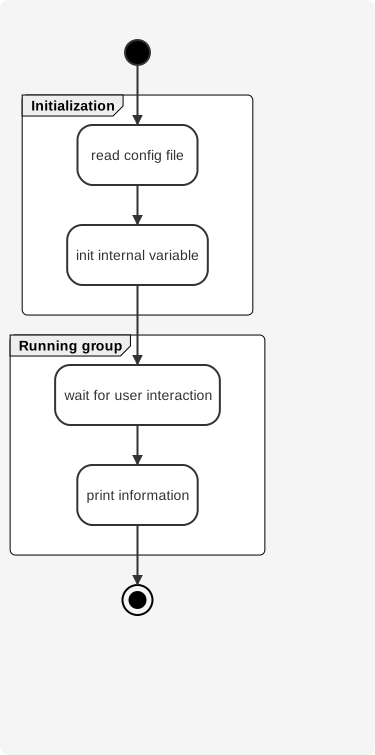
Groups
Use group to organize activities without the visual partition box.
Activity Diagram Example
Loading...
Notes
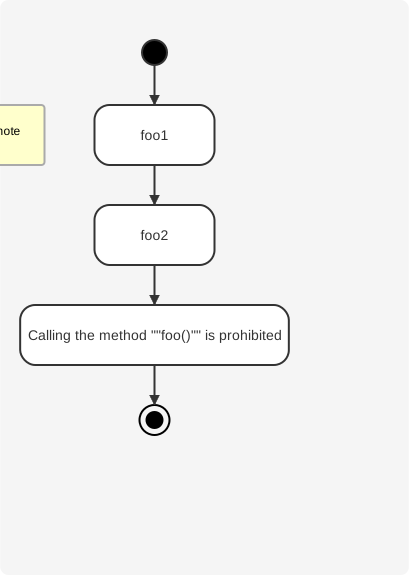
Add notes to provide additional information about activities. Notes can be floating or positioned relative to activities.
Activity Diagram Example
Loading...
Arrows
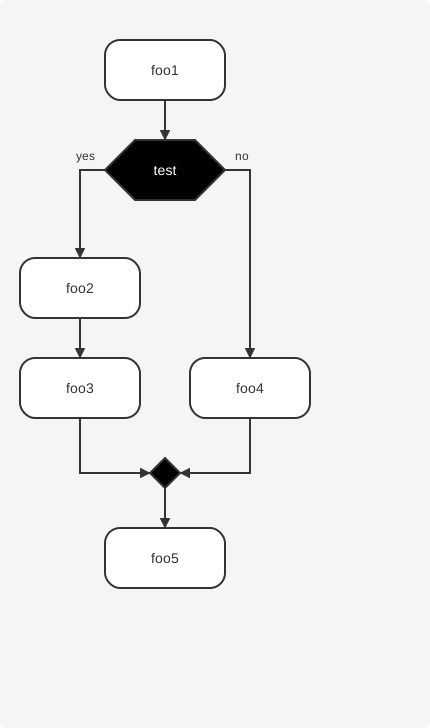
Using the -> notation, you can add text to arrows and change their color and style.
Activity Diagram Example
Loading...
Hidden Arrows
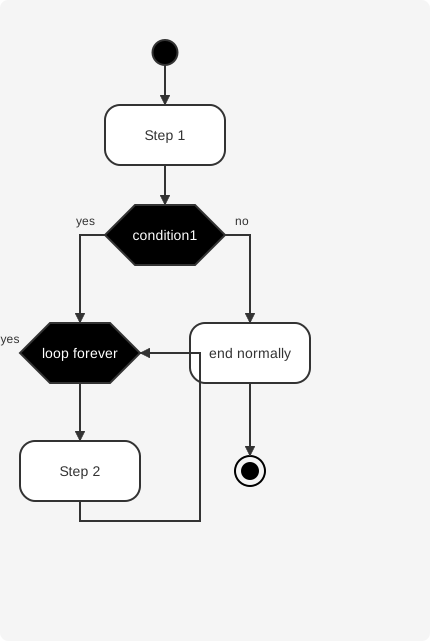
Use -[hidden]-> to create invisible connections for layout purposes.
Activity Diagram Example
Loading...
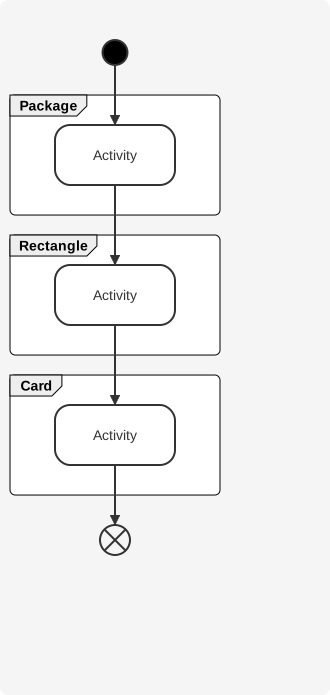
Package, Rectangle, and Card
You can group activities using package, rectangle, or card keywords, similar to partitions.
Activity Diagram Example
Loading...